
Knowledge Base
Learn how to use the Perfect Union ESL Sync System
Upload Products from Treez to Database and Opticon
1
Login to Treez Portal
- Navigate to your Treez dashboard
- Select your store location from the dropdown (e.g., "Perfect Union - Sac NorthSide")
- Click on Product in the left sidebar
- Click on Product List
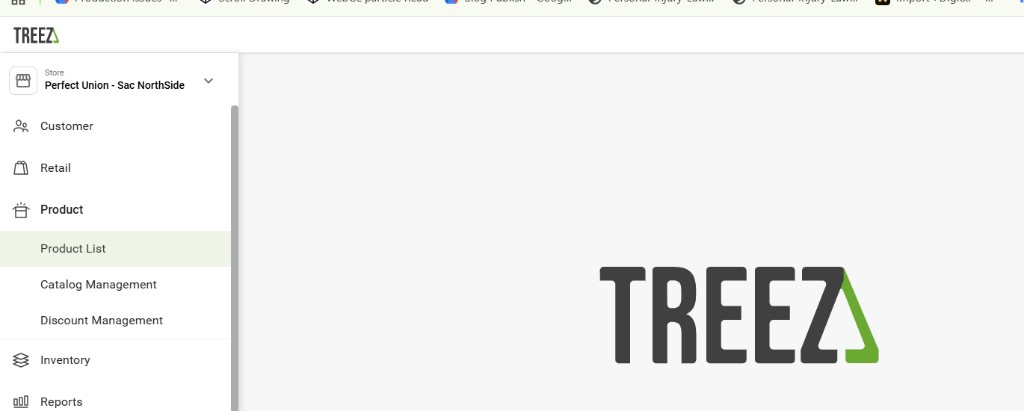
Screenshot 1: Navigate to Product → Product List in Treez portal
2
Filter Products with ESL Tag
- In the search box, type ESL
- The system will display all products tagged with "ESL"
- You should see the total count (e.g., "Displaying first 25 results of 36354")
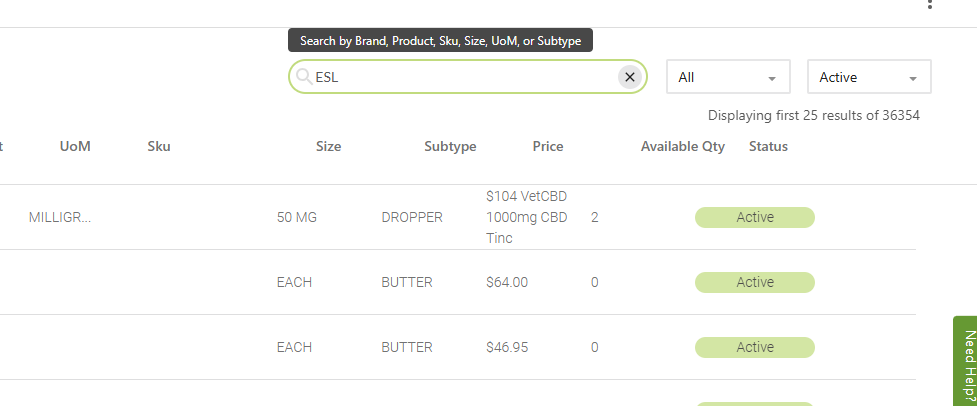
Screenshot 2: Search for "ESL" to filter products with ESL tags
3
Export Products to CSV
- Click on the three dots menu (⋮) in the top right corner
- Select CSV Export from the dropdown
- The CSV file will download automatically
- Open the CSV file in Excel or any spreadsheet application
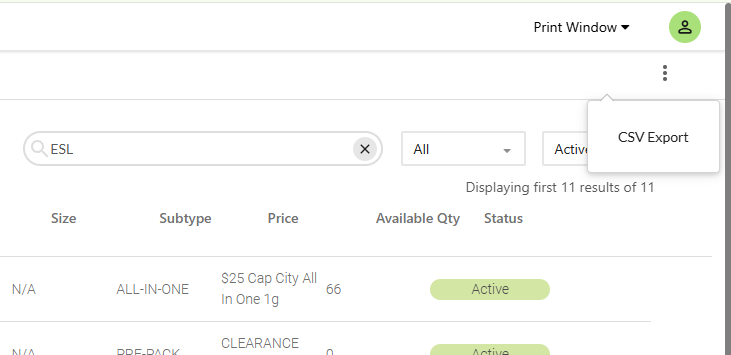
Screenshot 3: Click three dots menu and select CSV Export
4
Copy Product IDs from Excel
- Open the downloaded CSV file in Excel
- The first column (Column A) contains all Product IDs
- Select all Product IDs in Column A (excluding header)
- Copy them (Ctrl+C or Cmd+C)
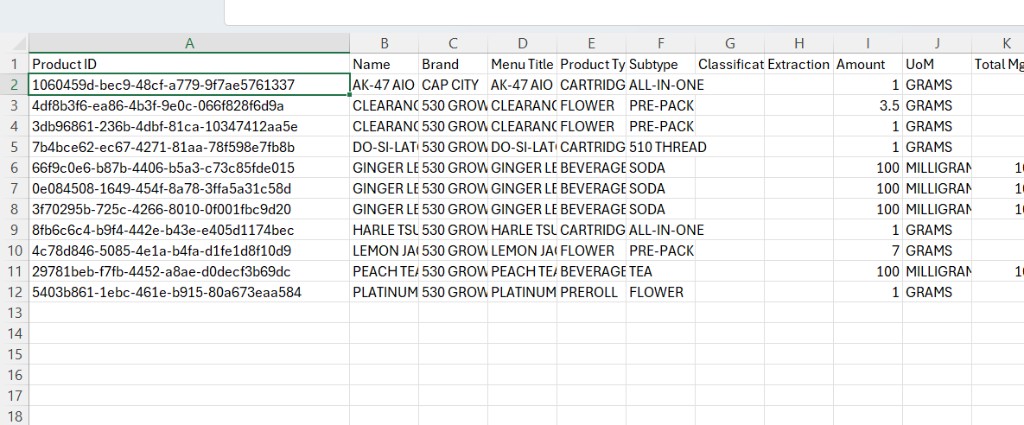
Screenshot 4: Excel file showing Product IDs in Column A (first column)
Example Product IDs:
1060459d-bec9-48cf-a779-9f7ae5761337 4df8b3f6-ea86-4b3f-9e0c-066f828f6d9a 3db96861-236b-4dbf-81ca-10347412aa5e ...
5
Update product-ids.json File
- Navigate to your project root folder
- Open
product-ids.jsonfile - Replace the existing Product IDs with the ones you copied
- Save the file
File Format:
{
  "productIds": [
    "1060459d-bec9-48cf-a779-9f7ae5761337",
    "4df8b3f6-ea86-4b3f-9e0c-066f828f6d9a",
    "3db96861-236b-4dbf-81ca-10347412aa5e"
  ]
}
⚠️ Important: Make sure to use proper JSON format with quotes and commas between IDs.
6
Fetch Products in Admin Panel
- Open the admin dashboard:
http://localhost:3000/admin - Click on Treez Products in the sidebar
- The system will automatically fetch all products from the updated product-ids.json file
- Verify that all your products are displayed in the table
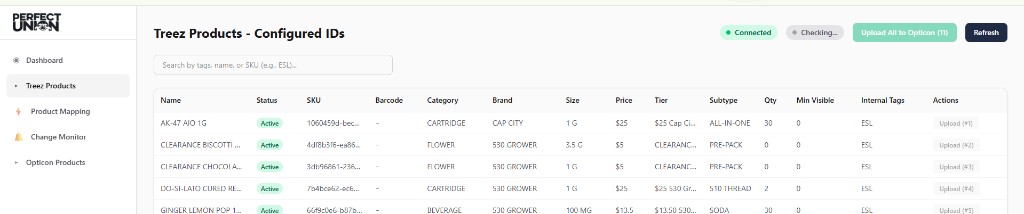
Screenshot 5: Admin dashboard showing fetched Treez products with all details
7
Upload Products to Opticon
- In the sidebar, click on Product Mapping
- Review all product data (price, barcode, name, etc.)
- Verify that all information is correct
- Click "Upload All to Opticon" button at the top
- Wait for all products to be uploaded (you'll see green checkmarks)
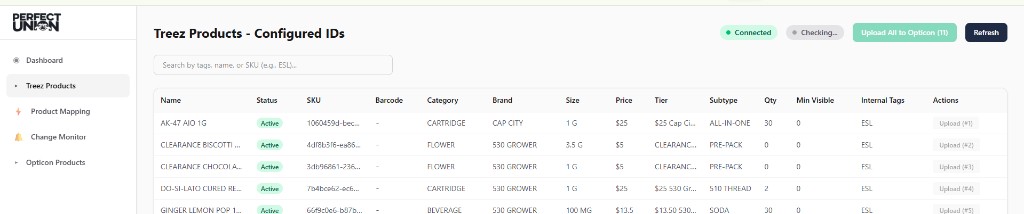
Screenshot 6: Product Mapping page with "Upload All to Opticon" button
8
Sync Products to Database
- In the sidebar, go to Change Monitor tab
- Click "Sync Products from Treez" button
- This will upload product snapshots to Supabase database
- Wait for sync to complete
- You'll see all products listed in the "Monitored Products" table

Screenshot 7: Change Monitor page with "Sync Products from Treez" button
ℹ️ Note: This step enables the real-time change detection system. Once synced, the system will automatically monitor these products for any changes.
9
Verify Products in Opticon
- Open Opticon EBS50 interface:
https://ebs50.local - Navigate to the Products section
- Verify that all uploaded products appear in the list
- Check that Barcode column contains Treez Product IDs (UUIDs)
- Verify prices, names, and categories are correct

Screenshot 8: Opticon EBS50 Products list showing all synced products with Treez UUIDs in Barcode column
✅ Success Criteria: All products visible in Opticon with correct data. ProductId should be sequential (1, 2, 3...) and Barcode should contain Treez UUIDs.
🎉 Setup Complete!
Once all steps are completed, your system is ready for real-time synchronization:
- Products are now being monitored automatically
- Any price changes in Treez will sync to Opticon within 1-2 minutes
- Background monitoring runs continuously
- Check the Change Monitor page anytime to see sync status
📌 Next Steps
- Test the sync by changing a price in Treez and verifying it updates in Opticon
- Link ESL tags to products in the Opticon Base Station
- Add more products to product-ids.json as needed
- Monitor the Change Monitor page for real-time updates